



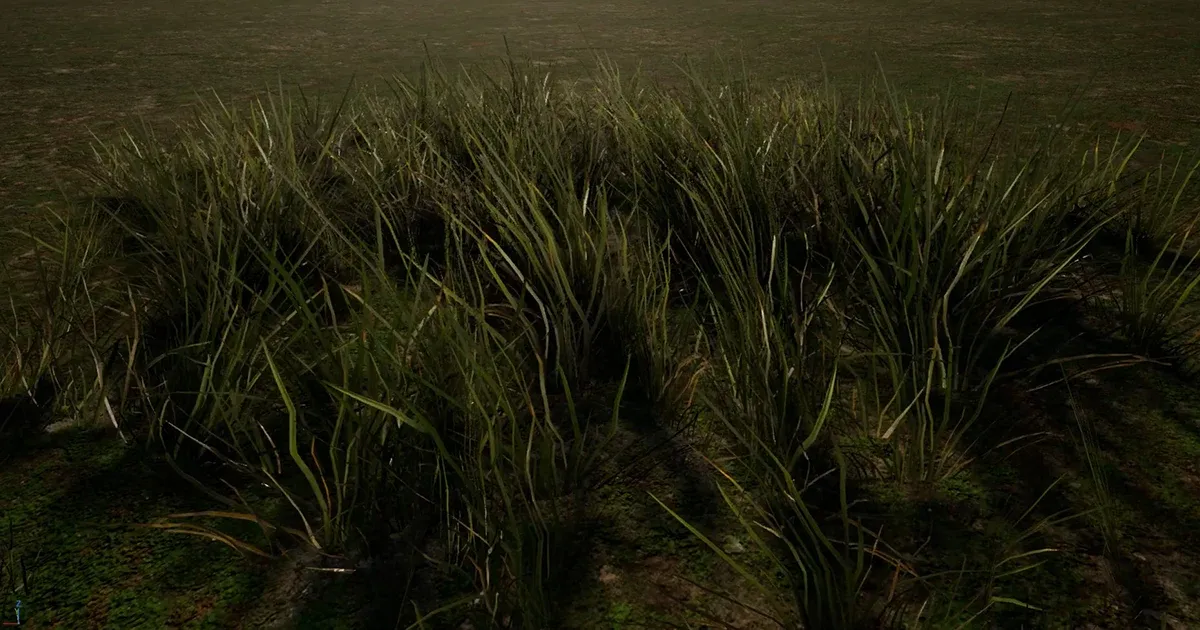
Creating Open-World Grass Clutter with SpeedTree

Published: Dec. 03, 2025
Introduction
Section titled “Introduction”This explains an asset-creation workflow using SpeedTree.
Since we will place large quantities of grass in an open-world environment, the assets must be as light as possible.
Tech demo
Section titled “Tech demo”How it moves in UE
Section titled “How it moves in UE”On WindDirectionalSource
LOD transition with UE
Section titled “LOD transition with UE”Add Transition to the material to create a smooth LOD transition.
How the Clutter fits the ground
Section titled “How the Clutter fits the ground”Explanation
Section titled “Explanation”Search for assets on Quixel
Section titled “Search for assets on Quixel”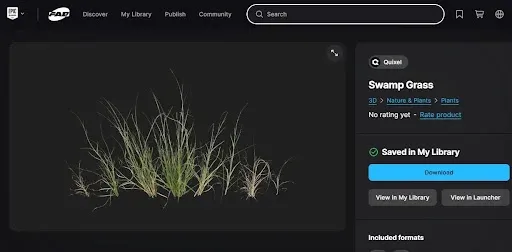
We will use fbx mesh files and textures.
Create fbx using a DCC tool
Section titled “Create fbx using a DCC tool”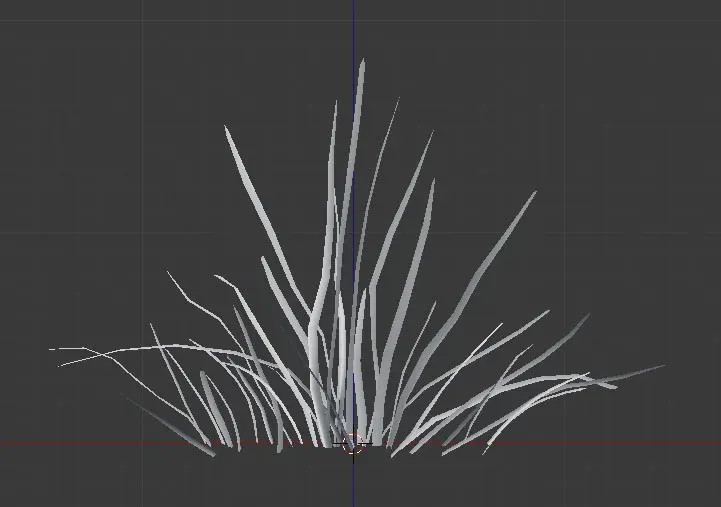
Import the FBX-format mesh and adjust its density.
Keep the entire mesh within a manageable triangle count.
Export the fbx.
Render Texture for the Cluster in SpeedTree
Section titled “Render Texture for the Cluster in SpeedTree”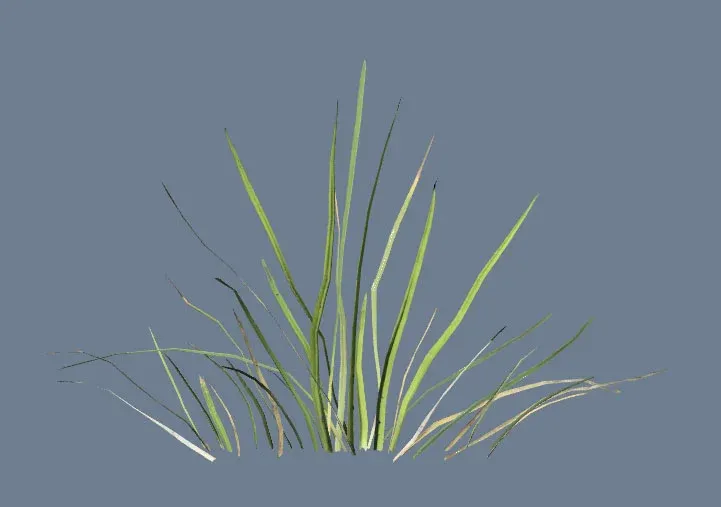
Import the fbx mesh you just created, along with Quixel textures, to prepare data for the cluster.
Export the texture that will be used as the card mesh.
Create the Final Asset in SpeedTree
Section titled “Create the Final Asset in SpeedTree”Create nodes in SpeedTree and import the cluster texture you created earlier. This will become the final asset you export to Unreal Engine.
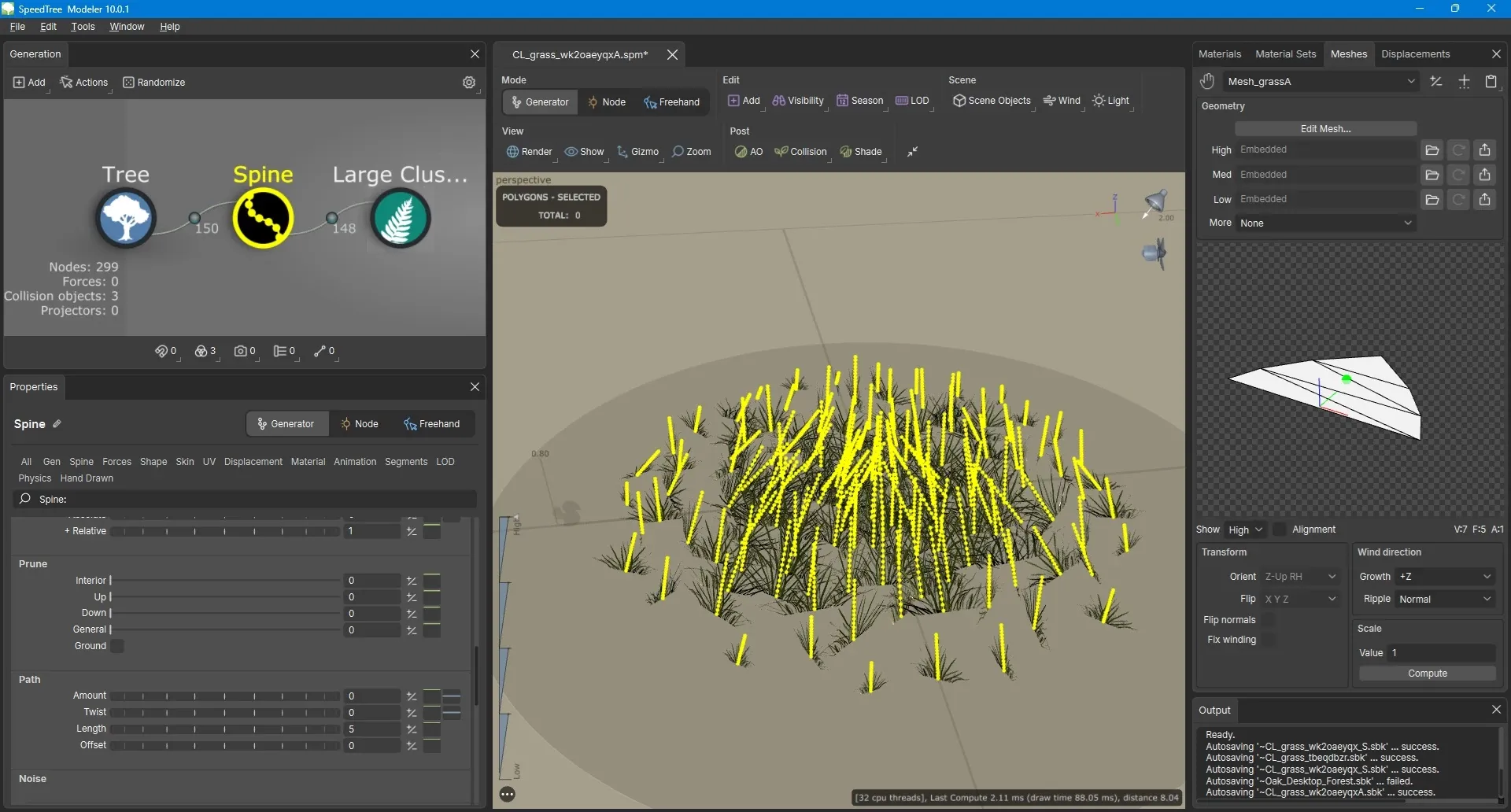
To simulate wind movement, connect Spine → Cluster nodes.
Do not use Leaf nodes.
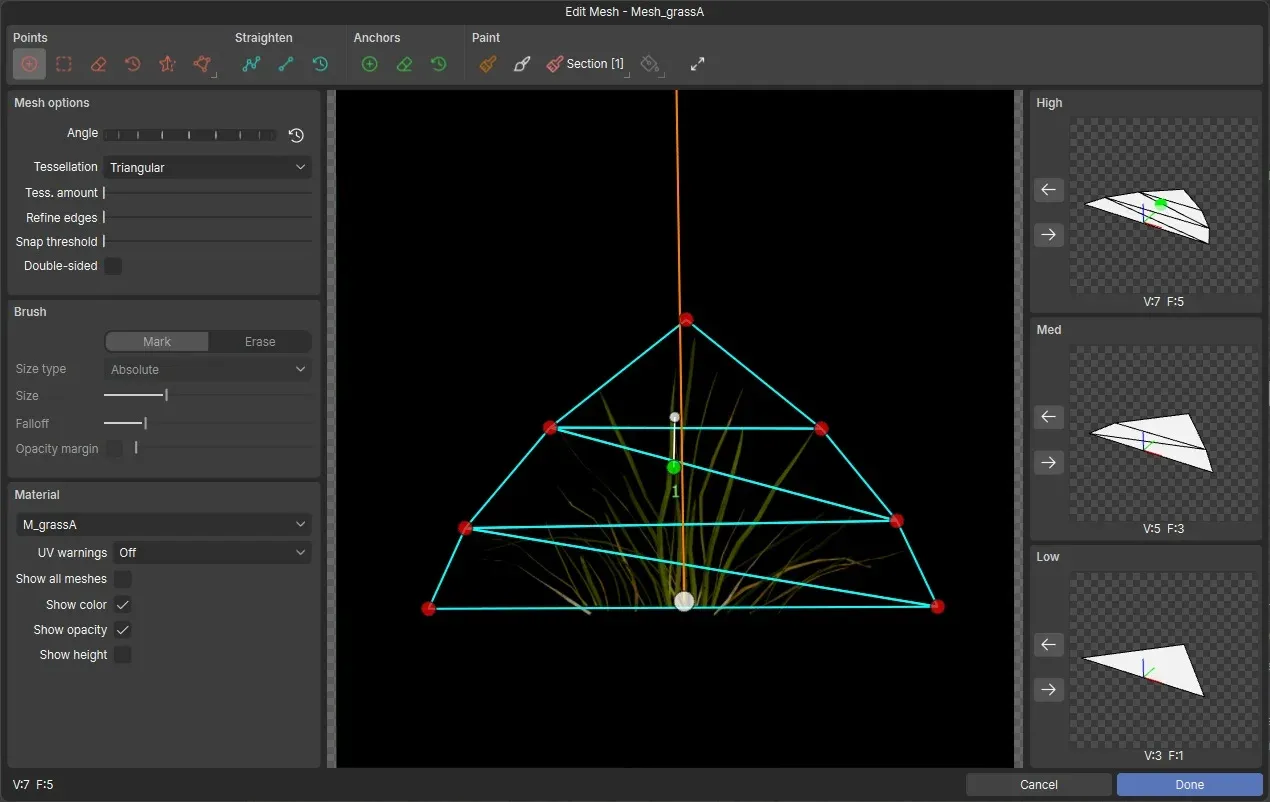
Cut out the mesh based on the texture
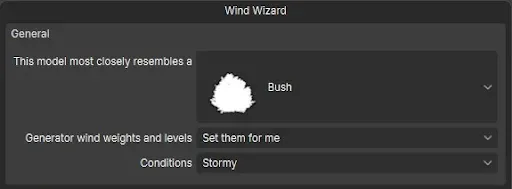
Launch the Wind Wizard and set it to Bush.
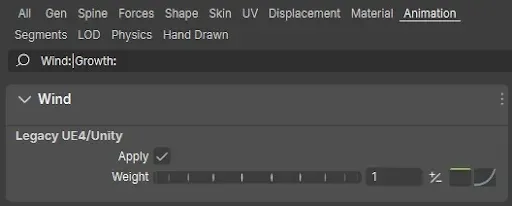
Spine › Animation › Wind
enable Apply under Legacy UE4.
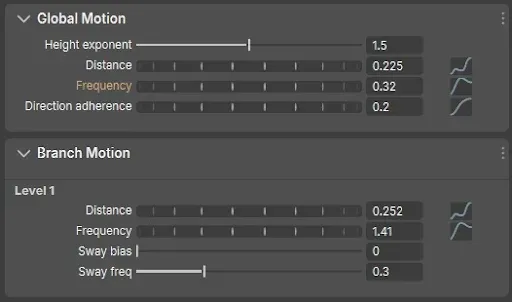
The Wind settings that we used
Set Up LOD
Section titled “Set Up LOD”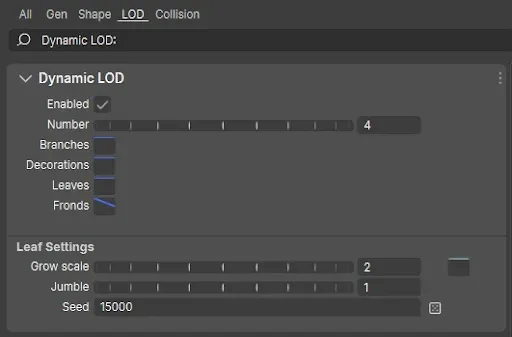
Create “4 mesh LOD” + a far-distance billboard
Export the .st File
Section titled “Export the .st File”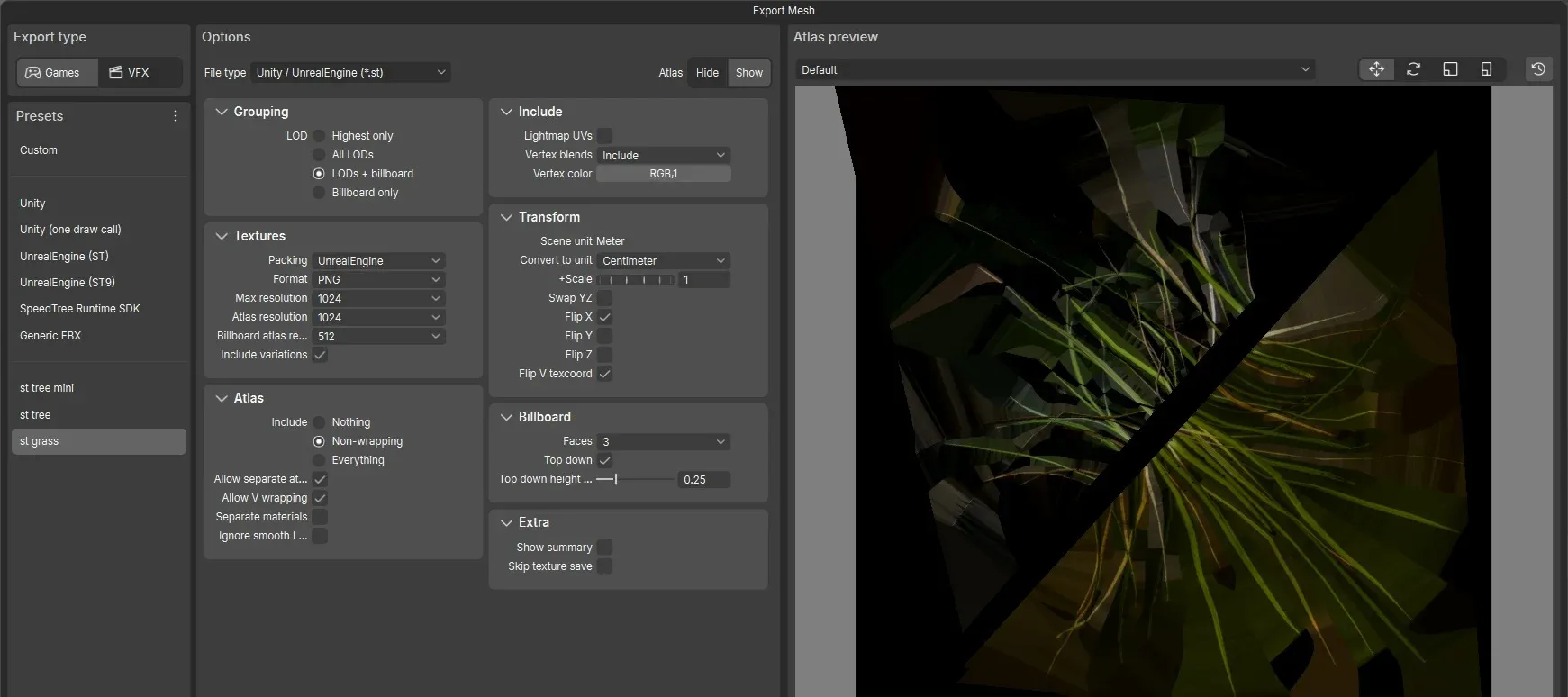
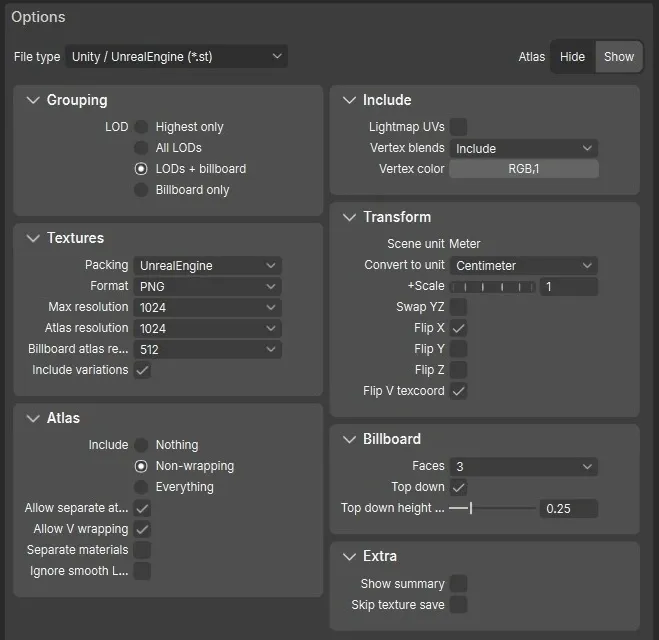
Import into Unreal Engine
Section titled “Import into Unreal Engine”LOD: 0
Section titled “LOD: 0”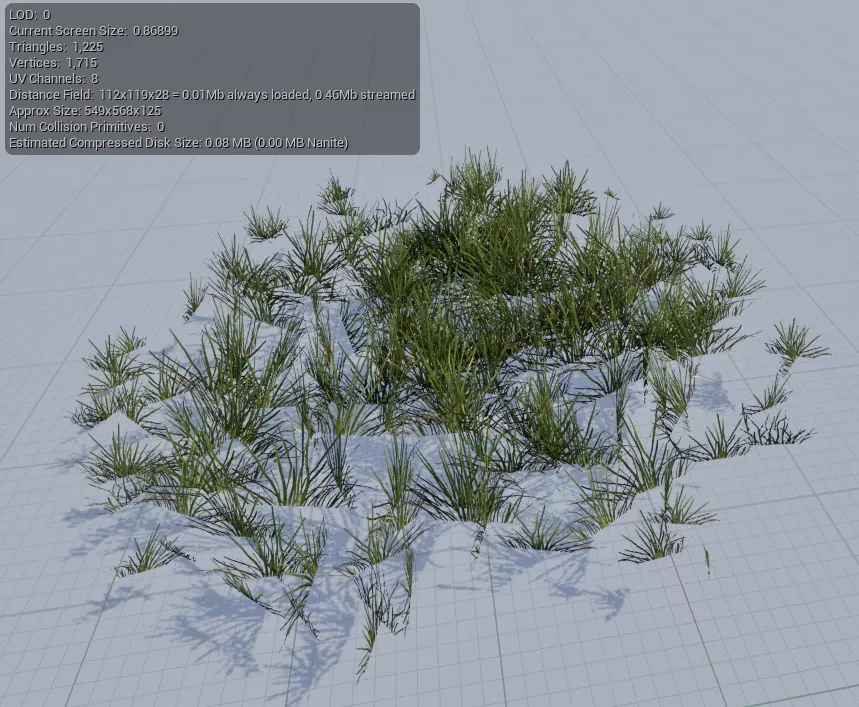
LOD: 1
Section titled “LOD: 1”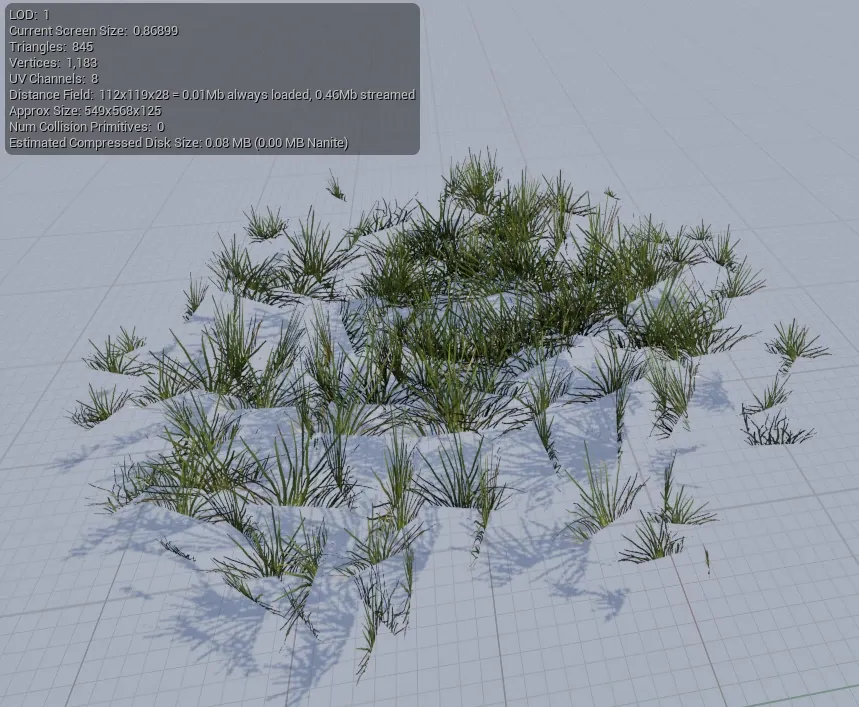
LOD: 2
Section titled “LOD: 2”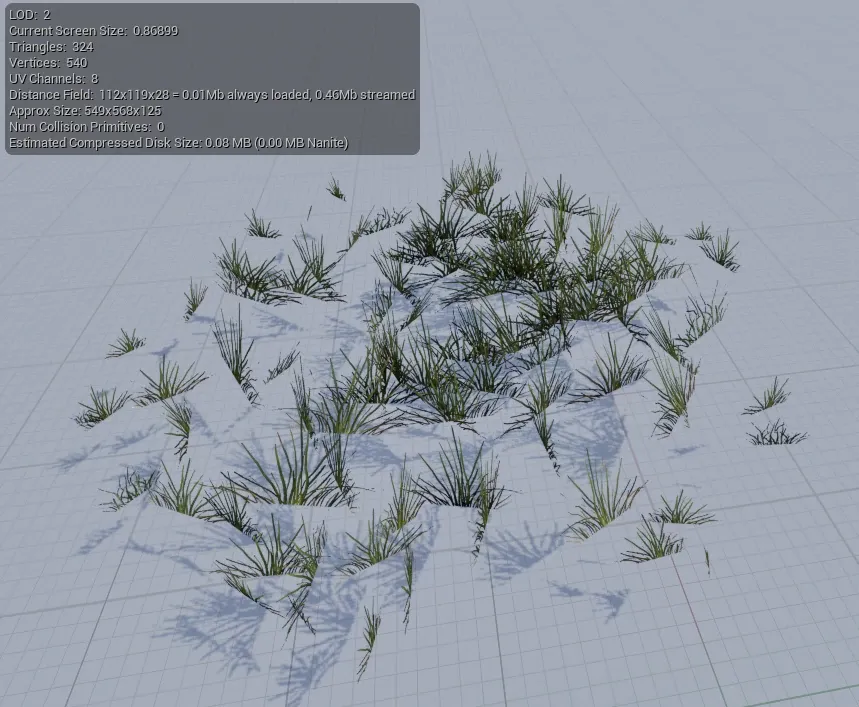
LOD: 3
Section titled “LOD: 3”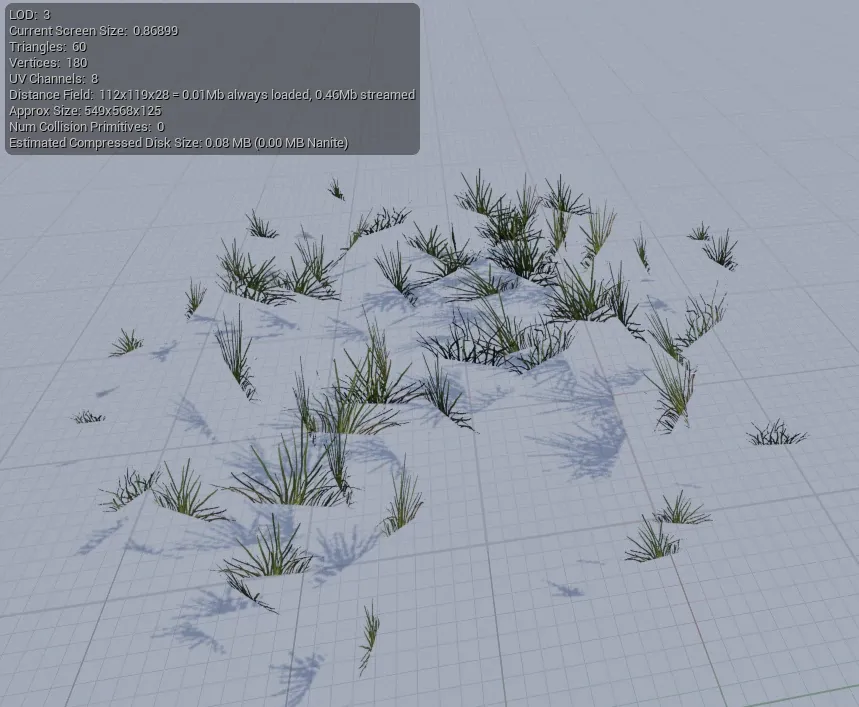
LOD: 4
Section titled “LOD: 4”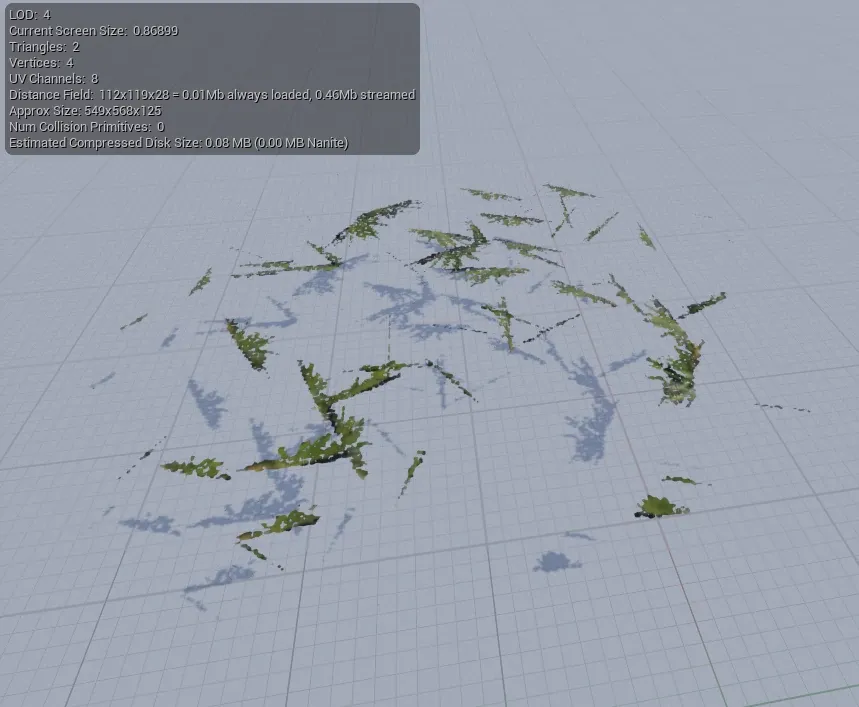
This asset will be used as grass clutter to be placed widely across the map.
To reduce the number of placed instances, make each asset fairly large (around 5.5 meters in size)
Use HeightMap so it fits to the ground.
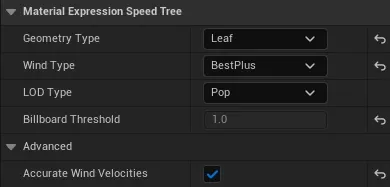
Enable Accurate Wind Velocities in the SpeedTree asset settings to reduce noise caused by wind movement.